
Perhaps the best way of ensuring that Windows 10 can revert to operating smoothly even when disaster strikes (such as a failed update) involves creating restore points in advance. Relax, it’s painless and easy.
Nothing is as smooth and painless like rolling Windows 10 back to a previously created restore point.
Creating a restore point
Step 1. Access System Properties throught the Control Panel
Open Control Panel. Search for the keyword “restore point”. Once results are shown, click on Create a restore point. (This will open the dialog System Properties on the tab System Protection.)
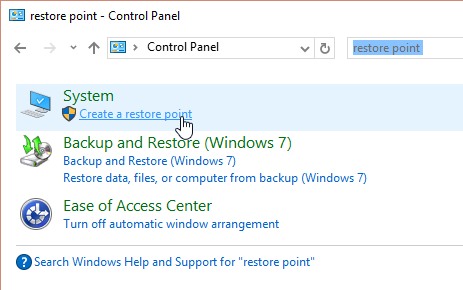
Step 2. Activate system protection
In the dialog System Properties on the tab System Protection, click Configure.

In the following dialog, activate the option Turn on system protection in the section Restore Settings. In the section Disk Space Usage, use the slider to set the maximum disk space you want to allow, then hit Apply. Click on OK to close the window.
Repeat this step for each of the available drives you want to protect by selecting it from the list and using the Configure button to manage disk space use.
Step 3. Create a restore point
Back on the tab System Protection in the dialog System Properties, click on the Create button, name the restore point, and confirm. Wait for the process to complete.
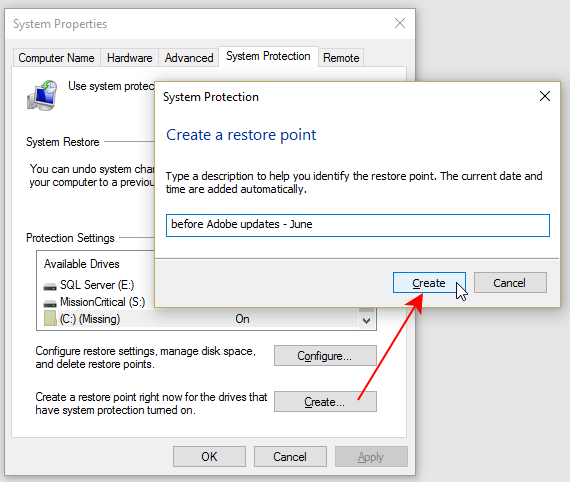
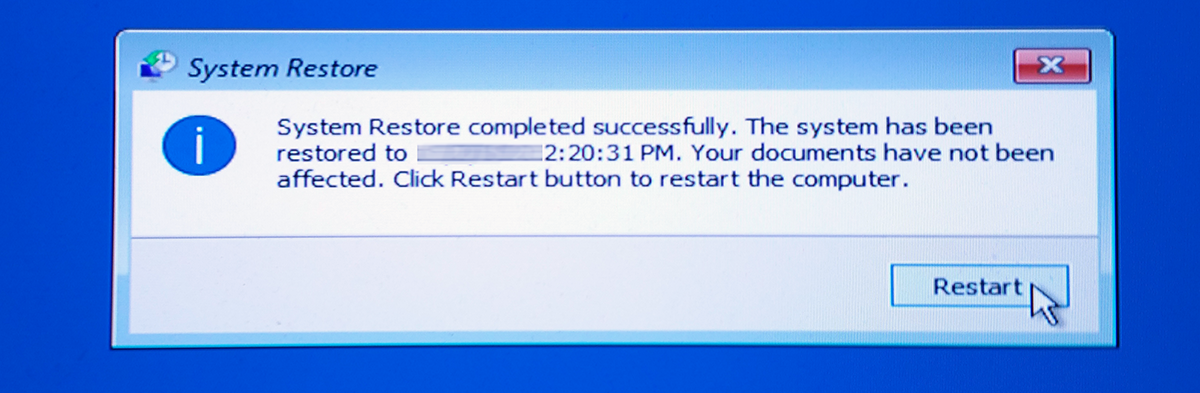
Should you ever run into trouble with your PC, you can now revert to this restore point using the System Restore feature as described in this post.
Leave a Reply